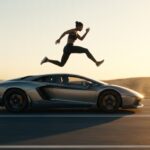
Transforming a static photo of a luxury car into a cinematic, showroom-grade video used to require expensive rigs, crane cameras, and hours in post-production. With modern image-to-video AI tools (such as Luma Dream Machine, Kling AI, Runway Gen-3, or Pika), you can turn a single photo of a standing Mercedes-Benz into a high-end commercial reel. Those same image-to-video tools also power the viral car jump reel, which turns one still frame into a full stunt sequence. You will find this and many more in our viral prompts library of copy-paste templates.
The secret lies in the prompt architecture: guiding camera trajectory, lighting dynamics, and vehicle stability without warping the bodywork or badging. If you would rather put the car in motion, our Hollywood-grade car stunt prompt shows the opposite approach, with the vehicle doing all the work.
What Is the “Mercedes Car Stand” Concept?
The Car Stand format focuses on a stationary (“standing”) Mercedes-Benz situated in an atmospheric environment—such as a neon-lit city street, a minimalist dark studio, or a foggy mountain overlook. For a wilder backdrop, our mountain AI video prompts pair standing vehicles with high-altitude scenery.
Instead of moving the vehicle itself, AI video engines animate the scene through:
- Smooth camera choreography: Slow push-ins, low-angle tracks, or controlled 360-degree orbits.
- Dynamic reflections & lighting: Headlights igniting, soft overhead light sweeps, and real-time street lamp glares dancing across metallic paintwork.
- Atmospheric motion: Drifting mist, subtle rain puddles with water ripples, or gently falling leaves around the stationary vehicle.
Master AI Video Editing Prompts (Ready to Copy)
Use your car photo as an Image-to-Video (I2V) reference, set the motion slider to medium (3–5), and paste one of the tailored prompts below.
1. The Ultra-Luxury Showroom Reveal (Best for Clean Studio Shots)
⚡ AI PROMPT
⚡ AI PROMPT
Step-by-Step Workflow: From Static Image to Viral Video
| Step | Action | Best Practice |
| 1. Source Image | Select an unobstructed 3/4 front or side profile photo of the Mercedes. | High resolution, well-lit, no cut-off bumpers or wheels. |
| 2. Platform Selection | Upload your image to an I2V engine (Runway Gen-3, Kling 1.5, Luma, or Hailuo). | Choose “Image-to-Video” mode rather than pure text generation. |
| 3. Motion Control | Keep camera motion speed set low (typically 2 to 4). | High motion rates cause wheels and grilles to warp or morph. |
| 4. Negative Prompting | Always specify vehicle structural constraints. | Explicitly forbid wheel deformation, morphing badge, shifting paint. |
| 5. Post-Enhancement | Import into CapCut or Premiere Pro. | Add low-frequency engine rumblings, cinematic LUTs, and speed ramps. |
Tips to Prevent AI Car Glitches
- Lock the Vehicle First: Explicitly include phrases like “stationary car”, “parked vehicle”, or “chassis remains rigid and fixed” to tell the AI only to move the camera, not deform the car.
- Anchor the Badge: The iconic three-pointed star is often prone to melting in AI video tools. Mentioning “maintain crisp, static chrome Mercedes emblem integrity” keeps the grille looking genuine.
- Pacing Matters: Keep individual AI generation durations between 4 to 6 seconds. Shorter clips maintain visual coherence and make tighter, snappier edits for Instagram Reels and TikTok.