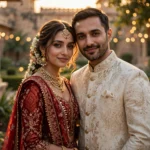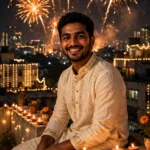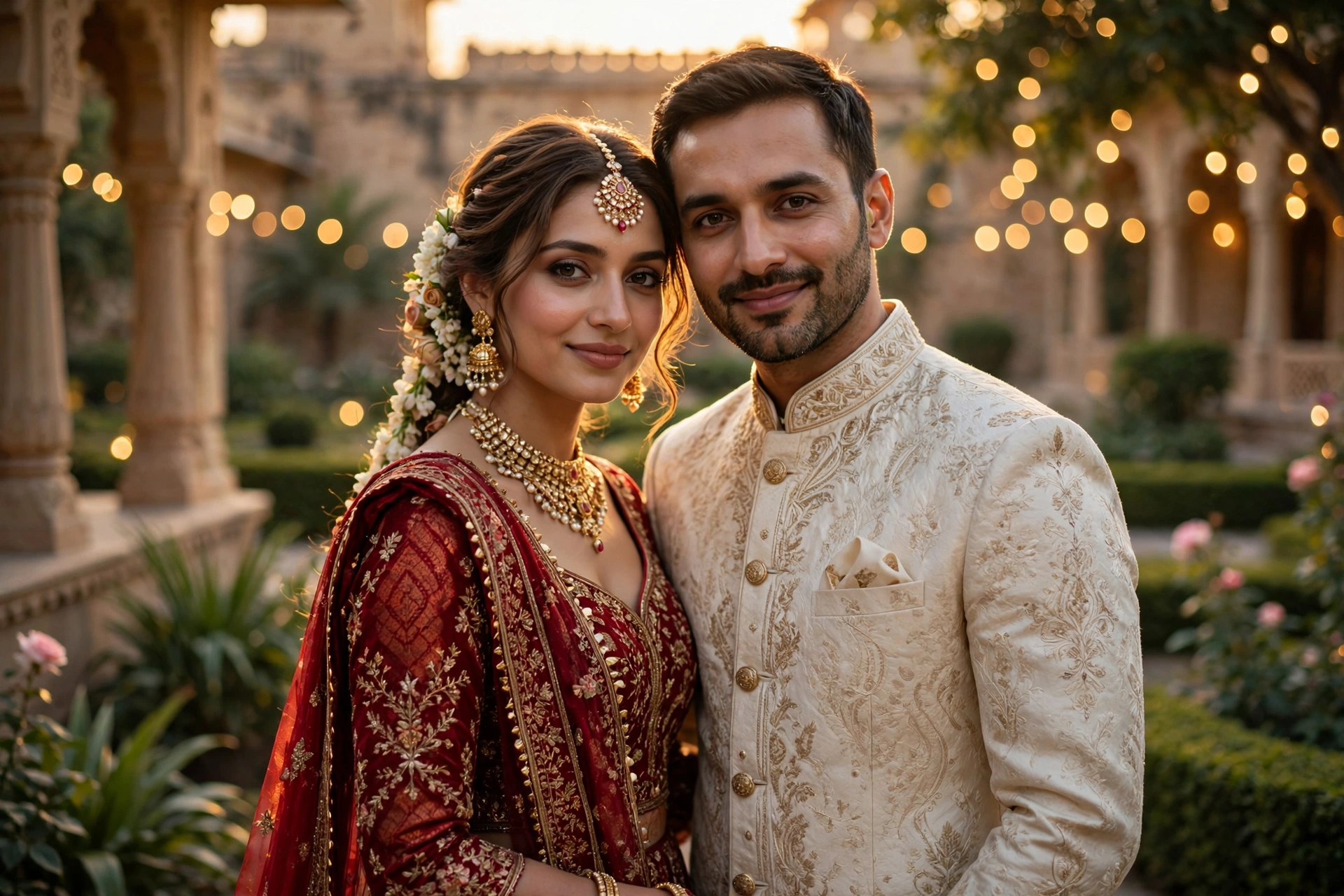
Wedding photos cost a fortune, and half of them still come back looking nothing like the day felt. That’s why the wedding couple AI trend took off — one ordinary photo of the two of you, and a good prompt turns it into a portrait that looks straight out of a royal album.
I tried it with a plain phone photo from a cousin’s mehndi, nothing staged, and the result stopped people mid-scroll. No studio, no second shoot, no waiting weeks for an album. Here’s how to do it yourself, with three prompts that keep both faces exactly as they are.
What you need
- One clear photo of the couple together, both faces visible and well lit
- An AI photo editor that works from an uploaded image (ChatGPT, Gemini, or any image-editing app)
- Five quiet minutes, and a bit of patience for the second try
The prompts
Prompt 1 — the royal portrait:
Use the uploaded photo of the couple as the reference. Keep both faces exactly the same — same face structure, same skin tone, same hairstyle, no face change at all, no beautifying. Transform the scene into a royal wedding portrait: the bride in a deep red embroidered lehenga with gold jewellery, the groom in a cream sherwani with a matching turban, standing together in a palace garden at golden hour. Warm soft light, gentle bokeh fairy lights behind them, elegant and cinematic, photorealistic. No face change, no extra fingers, no distorted hands, no text, no watermark.
Prompt 2 — the classic ballroom portrait:
Use the uploaded photo of the couple as the reference. Keep both faces exactly the same — same face structure, same skin tone, same hairstyle, no face change at all. Turn it into a timeless wedding portrait: the bride in a white flowing gown holding a small bouquet of white roses, the groom in a black tuxedo, standing close together in a grand ballroom with tall windows and soft evening light. Calm, romantic, magazine-quality photography. No face change, no extra fingers, no distorted hands, no text, no watermark.
Prompt 3 — the golden-hour candid:
Use the uploaded photo of the couple as the reference. Keep both faces exactly the same — same face structure, same skin tone, same hairstyle, no face change at all. Make it a warm candid wedding photo: the couple laughing together in a garden at sunset, the bride in a pastel lehenga and the groom in a light kurta, marigold flowers and string lights around them, golden light on their faces, natural and joyful, photorealistic. No face change, no extra fingers, no distorted hands, no text, no watermark.
How to use it
- Pick your photo. Both faces need to be clear and mostly front-facing — a side profile makes the AI guess, and guesses change faces.
- Open your AI photo tool and upload the photo. Use the image-editing mode, not a plain text chat, or the tool will describe the photo instead of editing it.
- Paste Prompt 1 in full. Don’t trim the face-preservation lines — they’re the part that keeps you looking like you.
- Check both faces first, before anything else. If one face drifted, regenerate with the same prompt and the same photo. One retry usually fixes it.
- Try Prompt 2 or 3 for variety. Same photo, different portrait — you end up with a little set instead of one lucky shot.
- Download the best version at full size and share it. A quick crop to 4:5 suits Instagram; the full frame suits a WhatsApp status or a print.
If it doesn’t look right
One face keeps changing. This is the most common fail with two people in one photo. Swap in a clearer, brighter photo where both faces are similar in size, then regenerate once with the same prompt. Don’t keep rewriting the prompt — it just muddies things.
The outfits look plastic. Add “natural fabric texture, realistic embroidery” to the end of the prompt. It pulls the AI away from that shiny, doll-like finish.
Extra fingers, again. Keep hands simple in your source photo — hands resting together, or one hand holding a bouquet. Arms wrapped around each other at odd angles are where the AI invents fingers that don’t exist.
The colours look too loud. Add “soft, natural colour grading” to the prompt. Wedding edits go over-saturated fast, and one line tames it.
It looks great but slightly “AI”. That’s usually the skin — too smooth. Ask for “natural skin texture, visible pores” and the portrait suddenly reads as a photograph, not a render.
More prompts people are copying right now
- All Latest Viral Prompts
- Viral Cute Transition AI Video Prompt: Outfit-Change Spin from One Photo
- Birthday AI Photo Editing Prompts: Turn One Selfie into a Cake-and-Balloons Portrait
- Viral Cricket AI Video Prompt: Stadium Walk-In Scene from One Photo
FAQs about wedding couple AI photo prompts
Will the AI keep both our faces exactly the same?
Mostly, yes — if your photo is clear and both faces are front-facing and well lit. The prompts tell the AI three different ways to leave your faces alone, and that helps a lot. But a dark photo, sunglasses, or a face turned away will still cause drift, so start with a good photo and don’t blame the prompt for a bad one.
Can I make these wedding portraits for free?
You can. Free AI photo tools will run these prompts, usually with a daily limit and slower generation. The portrait might come out at a smaller size than a paid tool gives you, but the faces and the outfits still work. Just avoid tools that stamp a watermark on free exports.
Which photo works best for a wedding couple prompt?
A recent, well-lit photo where both of you face the camera and your faces are roughly the same size in the frame. Outdoor daylight beats indoor yellow light every time. If one person is much closer to the camera than the other, the smaller face is the one that usually drifts.
Can I use these prompts for a pre-wedding shoot look?
Yes — Prompt 3 is basically a pre-wedding look already. Use a casual photo of the two of you, run the golden-hour prompt, and you’ve got a save-the-date image without booking a photographer. It works just as well for an engagement announcement.