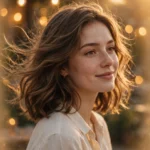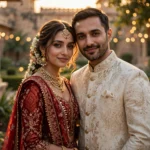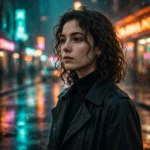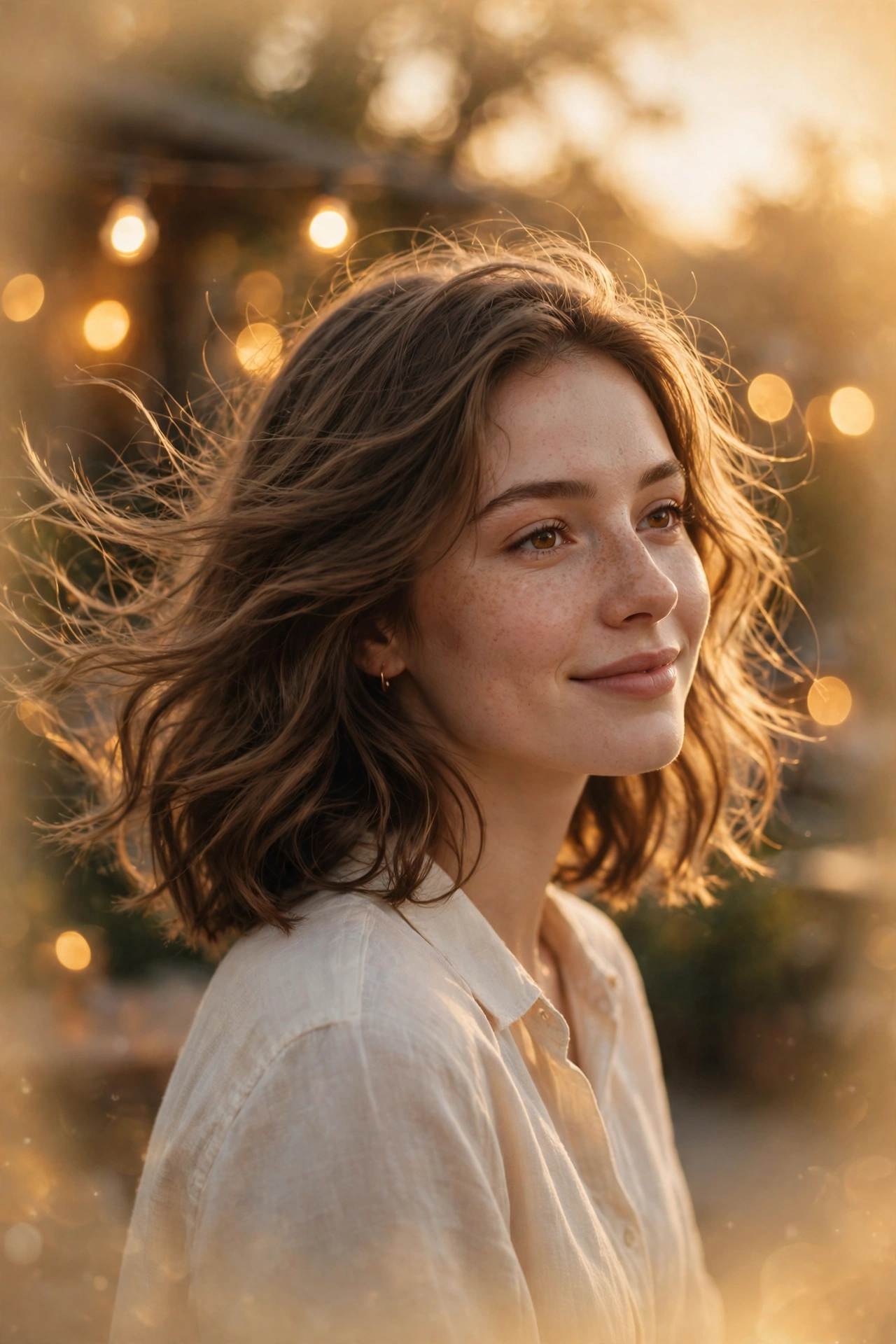
Some reels stop your thumb mid-scroll. This is one of them — a soft, dreamy slow-motion clip where a single photo turns into a romantic little film, all warm light and gentle movement.
The Dil Ruba edit is blowing up on Instagram right now, and you don’t need editing skills or a template link to join in. One photo, one prompt, and an AI video tool are enough. Here’s the exact prompt people are pasting, plus a short version that works in free tools.
What you need
- One clear photo of yourself, face well-lit and looking at the camera
- An AI video tool — Gemini, Kling, Runway, Hailuo, or any image-to-video app
- The master prompt below, copied as-is
- Instagram or TikTok for the song and the final post
The prompt
Paste this into your AI video tool with your photo attached:
Animate this photo into a dreamy romantic slow-motion reel, 8 seconds, vertical 9:16.
Scene 1 (0–3 seconds): The camera slowly pushes in on the person’s face as soft golden light washes across them. Hair and clothes move gently, as if in a light breeze. Eyes look softly at the camera.
Scene 2 (3–6 seconds): Slow cinematic orbit to the side. Warm bokeh lights glow in the background, a soft glow sits around the edges of the frame, and the person gives a small, gentle smile.
Scene 3 (6–8 seconds): The camera pulls back slightly as light flares softly across the lens. The person looks away for a beat, then back at the camera as the clip fades to warm gold.
Camera: slow, smooth, cinematic movement only — no fast cuts, no shake, no zoom jumps. Keep the uploaded photo’s face exactly the same, same features, same expression style, no face change. No text, no watermark, no captions, no lip-sync, no talking. Soft, romantic, dreamy mood throughout.
Short on credits or using a free tool? This 4-line version keeps the same look:
Turn this photo into an 8-second dreamy romantic slow-motion reel, vertical 9:16. Slow camera push-in, golden light, soft bokeh background, gentle smile at the end. Keep my face exactly the same, no face change, no text, no watermark, no lip-sync.
How to make it
- Pick your photo. A front-facing portrait in daylight works best. Avoid sunglasses, heavy filters, or a face turned away from the camera.
- Open your AI video tool. Use the image-to-video mode, not text-to-video — the whole trick is starting from your real photo.
- Upload the photo and paste the master prompt. Don’t trim the scene timings; they’re what give the clip its slow, film-like pace.
- Set 8 seconds and vertical 9:16. If your tool only offers 5 seconds, use the short version of the prompt instead.
- Generate and check the face first. Watch the first two seconds closely. If the face drifts, regenerate with the same photo — don’t try to fix it in an editor.
- Add the song in Instagram or TikTok. AI video tools don’t add music, so save the clip, open it in the Reels or TikTok editor, pick the trending romantic song, and post.
Tips and quick fixes
Face keeps changing? Use a sharper, brighter photo where your face fills at least half the frame. Dark or blurry selfies give the AI room to guess, and it guesses wrong.
Movement too fast? Add “very slow movement, gentle and calm” to the start of the prompt. Some tools rush the motion by default.
Clip looks flat? The golden light does most of the work here. If your photo was taken in harsh midday sun, try a different one — soft evening light matches this edit far better.
Watermark on the video? The prompt asks for none, but some free tools add their own. Export at the highest quality and crop the bottom edge slightly if you have to.
Want a different mood? Swap “golden light” for “soft blue evening light” and “romantic” for “calm and dreamy” — the scenes stay the same, the feeling changes completely.
More prompts people are copying right now
If this one worked for you, these are worth trying next:
- All Latest Viral Prompts — every trending prompt on the site in one place
- Professional Headshot Prompts — turn one selfie into a LinkedIn-ready studio portrait
- Viral Frank AI Video Prompt — turn your photo into a funny Frank character video
- Wedding Couple AI Photo Prompts — turn one photo into a royal wedding portrait
FAQ
Can I use this Dil Ruba video prompt with a free AI video tool?
Yes. The short 4-line version is written for free tools with short limits. Use image-to-video mode, keep the clip at 5–8 seconds, and add the song later in the Instagram or TikTok editor.
Why does my video change my face?
It usually means the photo was dark, blurry, or taken at an angle. Use a bright front-facing photo where your face fills most of the frame, and keep the “no face change” line in the prompt. If it still drifts, regenerate rather than editing the clip.
How do I add the Dil Ruba song to my video?
AI video tools don’t add music, so the song goes on after. Save your clip, open it in the Instagram Reels or TikTok editor, search for the trending romantic song, and trim the clip to match the beat before you post.
What photo works best for this prompt?
A clear front-facing portrait in soft natural light, with your face well-lit and looking at the camera. Plain or softly blurred backgrounds work best — busy backgrounds fight with the bokeh effect in the prompt.