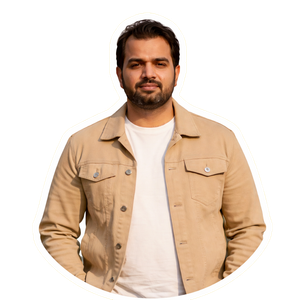
Your LinkedIn photo does more work than your headline. Recruiters, clients, and total strangers size you up in about two seconds — and a cropped holiday selfie with sunglasses on your head isn’t doing you any favours. The fix doesn’t need a studio booking or a photographer friend. It needs one decent selfie and a prompt that knows what it’s doing.
That’s the whole trick here. You upload your photo, paste the prompt, and the AI rebuilds everything around you: soft studio light, a clean background, a blazer you’d never actually buy. Your face stays yours. I’ve run all three prompts below on real selfies, and the third one is the version I’d happily put on my own LinkedIn.
What you need
- One clear selfie, front-facing, taken in daylight. Window light is perfect.
- ChatGPT or Gemini — the free versions handle photo edits fine.
- One of the three prompts below, copied exactly as written.
- Two minutes, and the patience to regenerate once if the first try looks off.
The prompts
Paste your selfie first, then the prompt underneath it. Don’t trim the negative lines at the end — “no face change, no extra fingers, no text” is what stops the AI from getting creative with your features. If a line looks odd in the result, regenerate rather than arguing with it.
Prompt 1 — the classic LinkedIn headshot:
Turn this selfie into a professional LinkedIn headshot. Keep my face exactly the same — same features, same skin tone, same expression, no beautifying, no face slimming. Place me against a clean light-grey studio background with soft, even lighting. Dress me in a smart navy blazer over a plain white shirt. Frame it as a head-and-shoulders portrait, sharp focus on the eyes, natural skin texture, realistic photo, not illustration. No text, no watermark, no extra people, no jewellery changes.
Prompt 2 — the warm, approachable one:
Edit this photo into a warm professional headshot for a company website. Keep my face unchanged — identical features, same smile, same hairstyle. Soft window light from the left, warm neutral background, blurred office bokeh behind me. Smart casual outfit: a dark shirt with the top button undone. Relaxed, confident expression. Photorealistic, natural skin, no smoothing, no filters. No text, no logos, no watermark, no extra fingers or distorted hands.
Prompt 3 — the dark, editorial one:
Transform this selfie into a premium editorial-style headshot. Keep my face 100% the same — do not alter my features, age, or expression. Dark charcoal studio background, dramatic soft key light on one side of the face, subtle rim light. Black blazer, crisp collar, head-and-shoulders crop, shallow depth of field. Magazine-quality, photorealistic, true skin texture. No text, no watermark, no background clutter, no face reshaping.
How to do it
- Pick your best selfie. Front-facing, eyes open, no sunglasses, no heavy shadow across one side of your face. A plain wall behind you helps, but it isn’t essential.
- Open ChatGPT or Gemini and start a new chat. Upload your selfie before you type anything — the AI edits what it can see.
- Paste the prompt you picked. Prompt 1 is the safe classic, prompt 2 is friendlier, prompt 3 is the bold editorial look.
- Wait for the result, then zoom in on the face. Check the eyes, the jawline, and the ears — that’s where face drift shows up first.
- If anything looks off, reply in the same chat: “Keep the face exactly as in the original photo. Change only the background, lighting, and outfit.” Then regenerate.
- Download the version you like, crop it square for LinkedIn, and upload it. Don’t run it through a beauty filter afterwards — that undoes the realistic skin the prompt worked for.
Small fixes when the result looks wrong
Face looks slightly different? Shorten the prompt’s outfit description and repeat the face line twice. The AI pays more attention to whatever you repeat.
Blazer looks painted on? Ask for a “plain dark suit jacket, natural fabric folds, realistic shadows”. Vague clothing words give vague clothing.
Background looks like a cheap backdrop? Swap “light-grey studio background” for “soft grey gradient background, subtle vignette”. Gradients hide the fakeness.
Skin looks plastic? Add “keep natural skin texture, visible pores, no smoothing” — or pick prompt 2, which already has it.
Ears or hair look melted? That’s a low-quality upload. Send the original photo file, not a screenshot of it, and avoid WhatsApp-compressed copies.
More prompts people are copying right now
If this worked for you, these are the ones people keep coming back to this week — same copy-paste idea, different trend.
- All Latest Viral Prompts: Copy Paste in One Click
- Viral Frank AI Video Prompt: Turn Your Photo into a Funny Frank Character Video
- Wedding Couple AI Photo Prompts: Turn One Photo into a Royal Wedding Portrait
- Viral Cute Transition AI Video Prompt: Outfit-Change Spin from One Photo
FAQ
Will the AI change my face?
It shouldn’t, if the prompt says so clearly — and all three prompts above repeat the face-preservation line on purpose. Even so, check the eyes and jawline before you post it. If the face drifted, regenerate with the line “keep the face exactly as in the original photo” added twice. Never use a headshot where you don’t recognise yourself; that’s worse than a bad selfie.
Which tool works best for these headshot prompts?
ChatGPT and Gemini both handle them well, and both are free for basic image edits. ChatGPT tends to be stricter about keeping the face, while Gemini is a bit faster at the background swap. Try the same prompt in both and keep whichever result looks more like you.
Can I use the result on LinkedIn and my CV?
Yes. It’s your photo, edited by AI — the same as retouching a studio portrait. Just don’t use it on a passport or any official ID document, where AI-edited photos aren’t accepted. And if your workplace has a photo policy, a quick check with HR never hurts.
Why does my headshot look fake or over-edited?
Usually one of three things: the selfie was low resolution, the prompt asked for too much at once, or a beauty filter got applied afterwards. Use the original photo file, keep the prompt focused, and skip filters entirely. A slightly imperfect real-looking headshot beats a flawless plastic one every time.