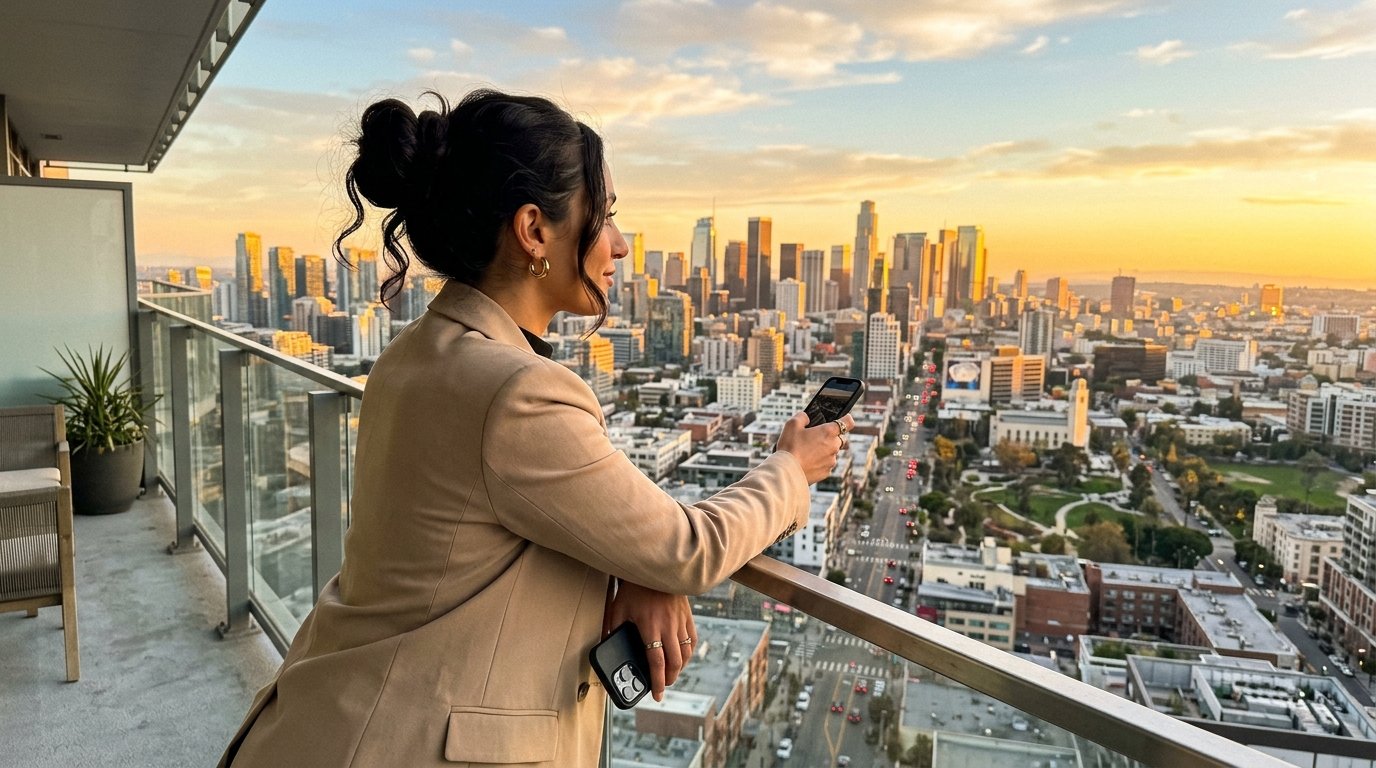
User-Generated Content (UGC) is the highest-converting ad format on TikTok, Instagram Reels, and YouTube Shorts. However, producing authentic, high-converting real estate walkthroughs typically requires on-site creators, staging permits, and hours of handheld camera work.
Recent advancements in multimodal AI video models—such as Google Flow, Kling, Runway Gen-3, Luma Dream Machine, and OpenAI Sora—allow creators to animate a 3×3 storyboard reference grid into a continuous, seamless multi-shot video.
This guide delivers an optimized master prompt and a step-by-step production workflow designed to keep character identity, architectural consistency, and natural handheld camera physics intact across 7 distinct scenes.
Quick Answer: What Makes UGC AI Prompts Work?
AI Overview Summary: A successful multi-scene UGC video prompt requires three non-negotiable anchors:
- Character Anchor: Strict physical descriptors (complexion, hair, exact wardrobe) locked to reference frames.
- Camera Grammar: Natural imperfections like mobile phone selfie-mode, slight micro-shakes, and optical pans.
- Spatial Anchors: Direct reference to architectural grids to stop background warping between interior and exterior shots.
The Master AI Prompt: Lumina Residences UGC Sequence
Copy and paste this production-ready master prompt into your AI video generator (paired with your uploaded reference storyboard grid):
⚡ AI PROMPT
Technical Breakdown: Why This Prompt Converts
| Element | Prompt Instruction | Technical Execution |
| Pacing & Hook | Scene 1: Selfie-mode intro | Triggers a relatable “talking head” opening that bypasses ad-fatigue on short-form feeds. |
| Visual Proof | Scene 2 & 3: Pan up + Lobby walk | Transitions the viewer from personality to product, establishing credibility and scale. |
| Lifestyle Aspiration | Scene 4 & 5: Show suite + Golden hour balcony | Uses emotional lighting to build perceived value before discussing price. |
| Conversion (CTA) | Scene 6 & 7: 10% down payment + “Book a Tour” wink | Directs attention to financial accessibility and closes with an actionable prompt. |
Step-by-Step Workflow: Animating a Storyboard Grid
Step 1: Prepare Your Storyboard Reference Grid
Before hitting generate, ensure your reference image contains all 7 keyframes arranged in a clear grid (e.g., 3×3 layout).
- Keep character clothing (beige blazer) identical across all frames where Sia appears.
- Ensure building facade elements (geometric white architecture, marble textures) match between interior and exterior shots.
Step 2: Configure Motion & Camera Weights
- Camera Movement: Set to Natural / Handheld. Avoid sweeping cinema cranes or mechanical dollies; organic micro-jitters mimic an iPhone or Pixel recording.
- Aspect Ratio: Choose 9:16 for Instagram Reels, TikTok, and YouTube Shorts.
- Motion Strength: Keep motion slider between 4 and 6. Going too high can cause architectural warping on straight wall lines or facial distortion during rapid head turns.
Step 3: Scene Chaining (If Generating in Segments)
If your model restricts generation duration (e.g., 5-to-10-second limits), utilize Frame Continuation (End-Frame to Start-Frame):
- Generate Scene 1 to Scene 2.
- Capture the exact ending frame of Scene 2.
- Feed that frame as the starting input for Scene 3, ensuring seamless motion continuity without visual jarring.
Best Practices for AI UGC Real Estate Ads
- Avoid Over-Polishing: Genuine UGC feels personal and casual. Prompts containing terms like “shot on smartphone, natural golden hour lens flare, handheld vlogging camera” perform better with audiences than “studio lighting 8k octane render.”
- Anchor the Character Name: Naming the presenter (Sia) across multiple scenes reinforces subject identity in multimodal models, reducing cross-scene facial drift.
- Add Native In-App Overlays in Post: Render the video clean from AI, then add native TikTok/Instagram text overlays, automated captions, and trending background audio inside CapCut or Premiere.